Quickstart
This page takes you from an existing Kubernetes cluster to a desktop in your browser. It is written for platform users and admins — if you want to hack on WaaS itself, see the developer quickstart in the waas repository instead, or try WaaS on a local k3d cluster.
Prerequisites
- A Kubernetes cluster
>= 1.26andkubectl/helmaccess to it. - cert-manager installed — the only external prerequisite (it issues the admission webhook and ingress certificates).
- Optional: KubeVirt, only if you want Windows workspaces (Not Implemented Yet). It is auto-detected — nothing to configure.
1. Install the chart
helm install waas oci://ghcr.io/xorhub/waas/charts/waas \
  --namespace waas --create-namespace \
  --set ingress.host=waas.example.com \
  --set ingress.tls.issuerRef.name=<your-clusterissuer>
A single chart installs everything: operator, API server, WebSocket proxy, frontend, guacd and PostgreSQL. See Installation for the values you will care about in a real deployment (OIDC SSO, external PostgreSQL, placement, bootstrap policies).
The default install already includes:
- a default
WorkspacePolicy(priority 0, applies to every authenticated user: 3 workspaces max, modest per-workspace caps, 2 h idle suspend, 14-day max lifetime); - the XorHub images catalog (
catalogs.waasImages, enabled by default): the official XorHub desktop images are pre-approved so the picker is not empty on first login.
Log in with the bootstrap admin account — if you didn't set
apiServer.adminPassword, the generated password is printed once in
the api-server logs:
kubectl -n waas logs deploy/waas-api-server | grep -i password
2. Create a WorkspaceTemplate
A template describes the desktop: which image, which sizing, which protocols. Apply this minimal template (adjust the image tag to the current catalog):
apiVersion: waas.xorhub.io/v1alpha1
kind: WorkspaceTemplate
metadata:
  name: ubuntu-desktop
  namespace: waas
spec:
  displayName: "Ubuntu 24.04 — XFCE Desktop"
  description: "Full XFCE desktop over VNC."
  os: linux
  image: ghcr.io/xorhub/waas-workspace-images/ubuntu-desktop-noble:0.4.2
  port: 5901
  homeSize: 10Gi
  resources:
    requests: { cpu: 500m, memory: 1Gi }
    limits: { cpu: "2", memory: 4Gi }
kubectl apply -f template.yaml
No credentials to configure: when a Linux template exposes VNC (or KasmVNC) without an explicit password source, the platform generates a random per-workspace password, injects it into the pod and resolves it server-side at connect time. See Templates and protocols for the explicit-Secret pattern.
The image must be approved by the catalog: workspace creation fails
with ImageNotInCatalog otherwise. The default install pre-approves
the ghcr.io/xorhub/waas-workspace-images registry, so the template above works
out of the box. For your own images, add a
WorkspaceImage entry first.
3. Create a Workspace
From the portal: New workspace, pick the template, pick a size, create.
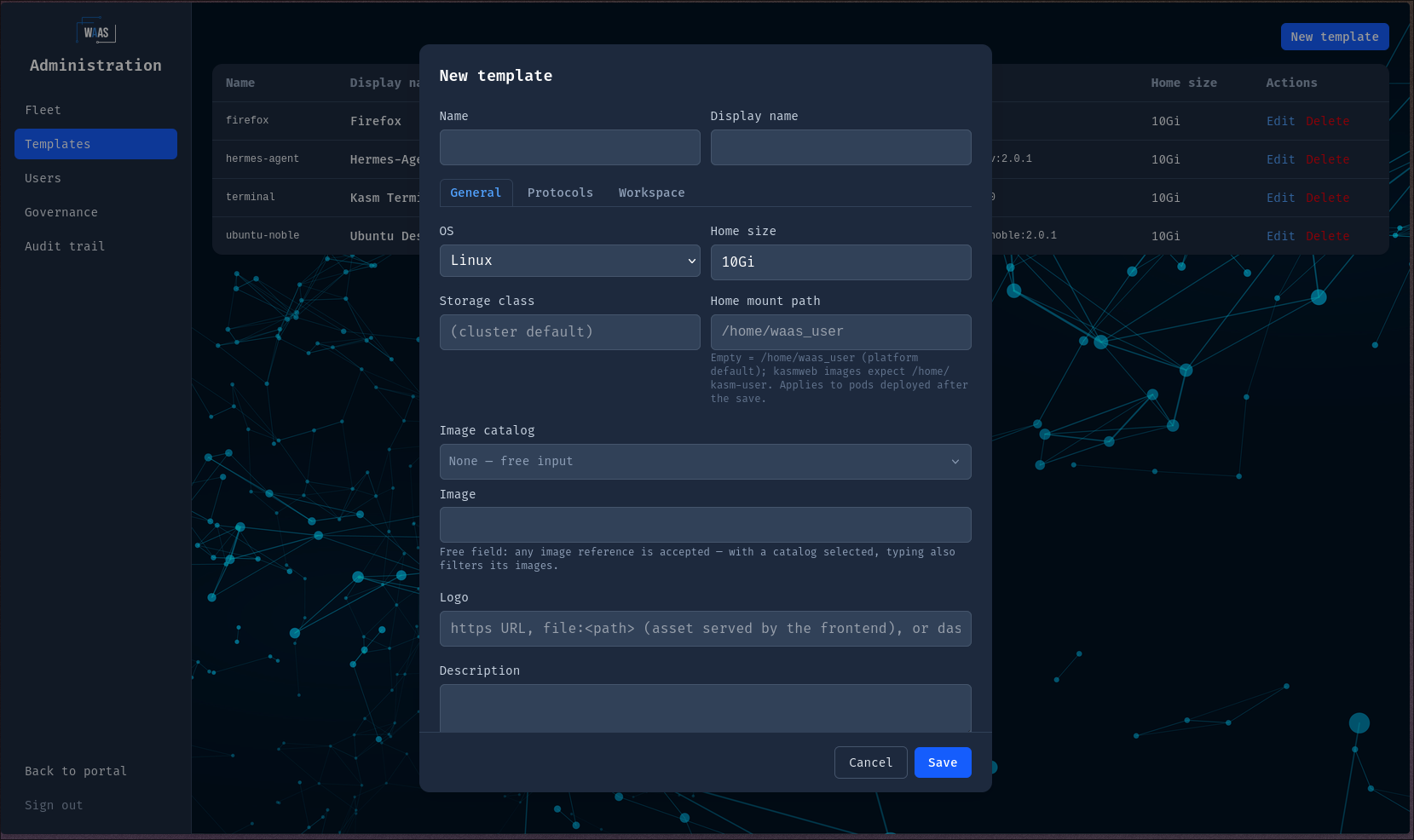
Or declaratively — the GitOps way:
apiVersion: waas.xorhub.io/v1alpha1
kind: Workspace
metadata:
  name: alice-ubuntu
  namespace: waas
spec:
  displayName: "Alice's Ubuntu desktop"
  owner: alice # must match YOUR authenticated username via kubectl
  templateRef: ubuntu-desktop
kubectl apply -f workspace.yaml
kubectl get workspace -n waas -w
The workspace goes Pending → Provisioning → Running. The READY
column flips once the desktop actually accepts connections on its
protocol port (the operator probes it — pod readiness alone is not
enough).
4. Connect from the browser
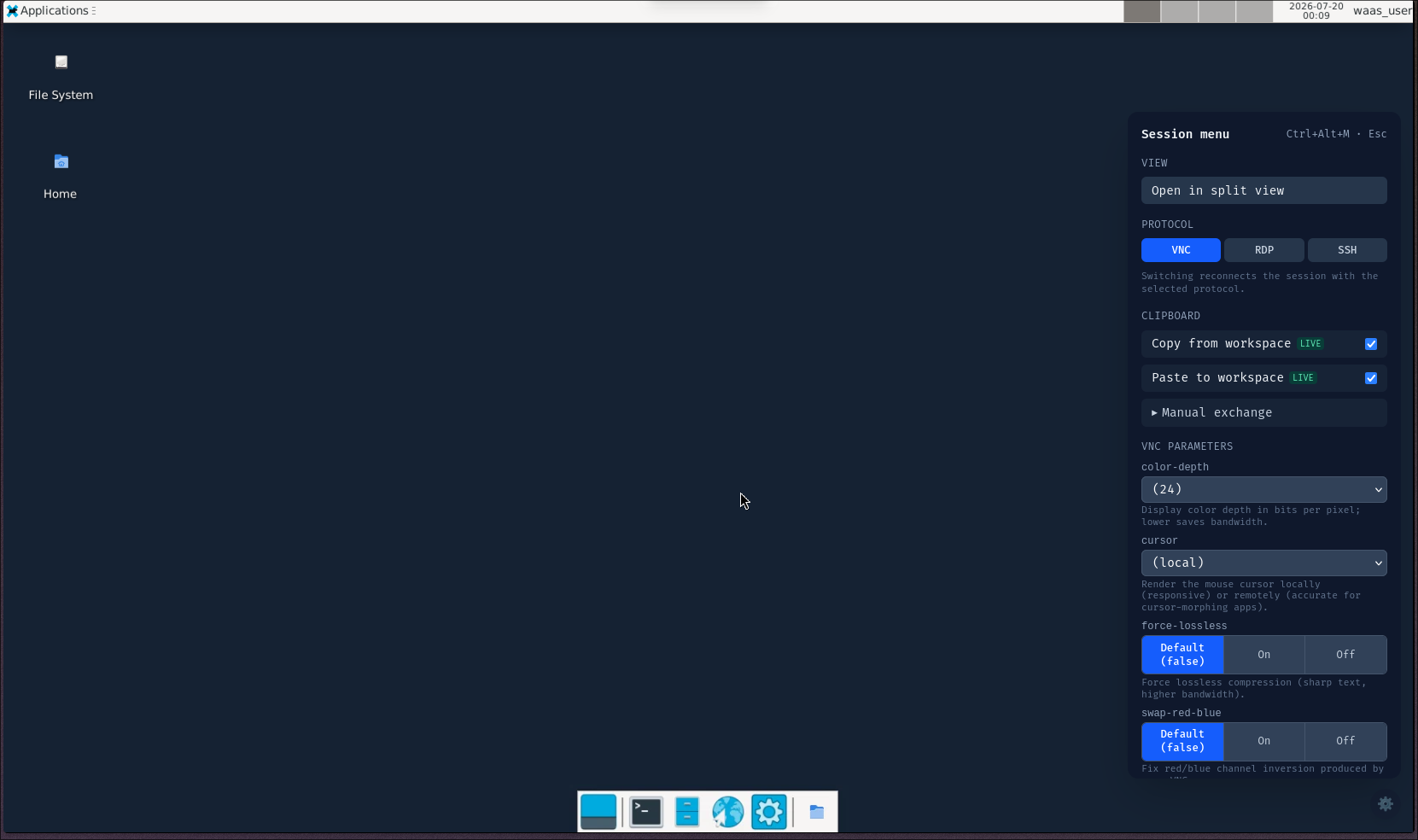
Open the portal, click the workspace card — the desktop opens in the browser tab over a WebSocket session. The proxy validates your JWT before any connection to guacd is made; the desktop password never reaches the browser.
5. Everyday operations
| Action | Portal | kubectl |
|---|---|---|
| Pause (free compute, keep home) | card menu → Pause | kubectl patch workspace <name> --type=merge -p '{"spec":{"paused":true}}' |
| Resume | card menu → Resume | same with "paused":false |
| Delete (home volume kept by default) | card menu → Delete | kubectl delete workspace <name> |
| Inspect status and events | card → Events panel | kubectl describe workspace <name> |
Where to go next
- Installation — the Helm values that matter, upgrades.
- Concepts — lifecycle, templates, policies, placement, volumes.
- Using the CRDs — kubectl/ArgoCD/Flux patterns, more examples.
- Workspace images — what runs inside a Linux workspace, and how to build your own image.